What Is an Email Alias? Examples, Uses & Setup Guide
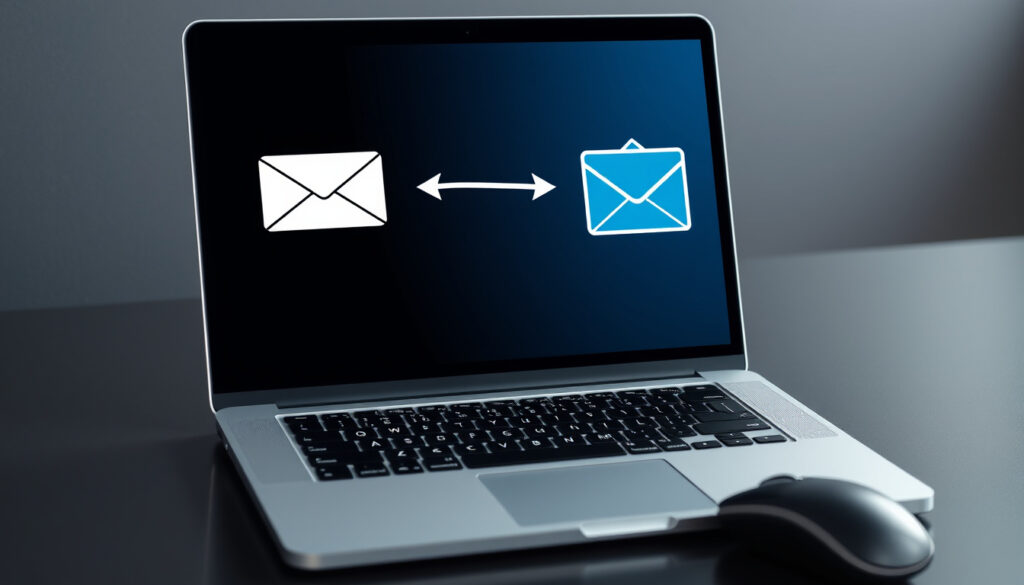
An email alias is a forwarding address that sits alongside your primary account, letting you receive email without exposing your real inbox to strangers. When someone sends mail to the alias, it lands in your main inbox — but the sender never sees your real address. This distinction matters more than it sounds: your primary email is the key to password resets, two-factor authentication, and every account you’ve ever created online.
Primary Function: Forwarding email address · Common Use: Receive email without exposing primary address · Admin Control: Added to user’s primary email · Hosting Requirement: Same company as primary · Key Issue: Potential for abuse
Quick snapshot
- Aliases forward all emails to primary inbox (101domain)
- Work with same email provider as primary address (Business Insider)
- Google Workspace allows distinct aliases like support@domain.com (101domain)
- Universal deliverability effects vary by recipient server
- Long-term abuse prevention requires active monitoring
- Krebs on Security published security pros/cons analysis (Krebs on Security)
- Gmail vs Outlook comparisons updated for 2025 (Krebs on Security)
- Catch-all domain aliases gaining traction for stealthier masking
- AI-powered filtering may offset deliverability concerns
| Label | Value |
|---|---|
| Definition | Forwarding email address |
| Primary Benefit | Privacy protection |
| Requirement | Same host as primary |
| Control | Admin adds/deletes |
| Gmail Alias Methods | Dot, plus, send-as |
| Gmail Storage | 15GB pooled |
| Outlook Free Storage | 15GB mailbox + 5GB OneDrive |
What is an email alias?
An email alias is a forwarding address that sits alongside your primary account. When someone sends mail to the alias, it lands in your main inbox — but the sender never sees your real address. This distinction matters more than it sounds: your primary email is the key to password resets, two-factor authentication, and every account you’ve ever created online.
How email aliases work
An admin adds an alias to a user’s primary email address, and all messages sent to that alias route automatically to the main inbox (101domain). The alias shares the same provider as the primary account, which means you can’t create a Gmail alias pointing to a Yahoo inbox, for example. This hosting requirement is fundamental — it’s what makes aliases free to set up but limited in scope.
Gmail offers three alias methods: the dot trick (john.doe@gmail.com routes to johndoe@gmail.com), the plus sign (john+shopping@gmail.com delivers to john@gmail.com), and custom send-as aliases added via the Accounts and Import tab (101domain). The dot method only works for personal @gmail.com addresses, not Google Workspace custom domains. Outlook, by contrast, offers aliases directly in settings without the workaround gymnastics Gmail requires (Business Insider).
Your alias never has its own inbox — it’s purely a forwarding layer. Everything lands in one place, which simplifies management but means your primary address bears the full load of storage and retention.
The implication: aliases are organizational tools layered on top of an existing account, not independent substitutes for one.
What is an example of an email alias?
Practical examples make the concept concrete. Instead of giving out your real address, you might use different aliases for different contexts, then route them through filters to stay organized.
Common alias formats
The most common patterns are role-based: info@yourdomain.com for business inquiries, billing@yourdomain.com for financial matters, or john+shopping@gmail.com to track which retailers you buy from. Each alias forwards to your primary inbox while keeping the sender’s view of your identity hidden (101domain).
Catch-all domains take this further. A catch-all like amzn382@mydomain.com creates a stealthy alias without revealing your primary email — useful for testing services or isolating promotional mail (Krebs on Security). The alias looks random to outside eyes, so even if the address leaks, your real inbox stays protected.
When a service you trust suffers a breach, an alias used exclusively for that account helps you pinpoint the source. If spam starts arriving at your shopping alias, you know exactly which retailer sold or leaked your address.
What is the difference between an email account and an alias?
The core distinction comes down to inbox ownership. An email account has its own storage, sent folder, and sign-in credentials. An alias has none of these — it’s a forwarding pointer that depends entirely on its primary account.
Key distinctions
An email account is a standalone identity: you can sign in, set a password, and store messages independently. An alias cannot be accessed directly — it must forward to a primary account that already exists (Business Insider). If you delete the primary account, the alias disappears too.
Gmail and Outlook handle organization differently. Gmail uses labels and filters; Outlook uses folders and rules (Bay Path University KB). Both systems can route alias-delivered mail to specific containers, but the mechanics differ. Outlook aliases can be set to go to specific folders natively (Microsoft Q&A), while Gmail requires a filter attached to your primary address.
| Attribute | Email Account | Email Alias |
|---|---|---|
| Inbox ownership | Yes | No (forwards only) |
| Separate storage | Yes | No |
| Sign-in credentials | Yes | No |
| Survives primary deletion | N/A | No |
| Setup cost | May require new plan | Free with primary |
The implication: aliases are organizational tools layered on top of an existing account, not independent substitutes for one. If you need separate billing history or distinct archive access, an alias won’t deliver — you need a full account.
What is the point of email aliases?
Aliases serve two overlapping purposes that most users discover the moment their primary address starts attracting unwanted mail: privacy and organization. The privacy angle is straightforward — you control what information leaves your digital fingerprint. The organization angle is subtler but equally valuable for heavy email users.
Privacy and organization uses
Using an email alias helps shield your real address, cut down on unwanted messages, and improve your online privacy (Business Insider). When you sign up for a newsletter, create a loyalty account, or submit a form, you can use an alias instead of exposing your primary inbox. If the alias later floods with spam, you know exactly where the leak originated.
Aliases also enable role-based communication without maintaining separate inboxes. Role-based emails like billing@domain.com or support@domain.com route to designated recipients or folders, letting small teams share responsibilities without juggling multiple logins (101domain). For freelancers or small business owners, this means appearing more established without the overhead of managing additional accounts.
Aliases can help detect breaches and fight spam, but not all websites accept alias addresses with + tags — some forms reject the plus sign as invalid. This limitation means you’ll sometimes need fallback addresses or catch-all domain aliases instead.
What are the disadvantages of email aliases?
The same forwarding mechanism that makes aliases useful creates two categories of problems: deliverability concerns and control limitations. Neither is catastrophic, but both deserve acknowledgment before you commit your inbox to the alias approach.
Deliverability and control issues
Some email services flag messages sent to addresses with plus signs as suspicious, which can affect deliverability rates (Krebs on Security). Major platforms like Gmail and Outlook generally handle plus-addressed mail fine, but smaller services or corporate servers may filter or reject it. The result: an alias that looks valid but never delivers.
Control over aliases belongs to the account admin, not the end user in most configurations. For Google Workspace accounts, an administrator adds and removes aliases — individual users cannot self-service without admin rights (101domain). Personal Gmail users have more flexibility with the plus trick, but lack true distinct aliases beyond send-as customization.
Upsides
- Privacy: shields primary address from exposure
- Organization: auto-filters mail by source
- Breach detection: identifies which service leaked your address
- Role-based emails: professional addresses without multiple accounts
- Free: included with any primary email account
- Gmail plus trick creates infinite addresses (Protect us better)
Downsides
- Deliverability: some sites block plus-sign addresses
- Account recovery: aliases can complicate password resets
- Storage: relies entirely on primary account allocation
- Admin dependency: Workspace aliases require admin access
- Gmail dot method limited to personal @gmail.com only
- No standalone inbox for business separation
How to create an email alias
Setting up an alias takes less than five minutes, though the exact steps depend on your provider. Both Gmail and Outlook offer viable paths — here’s what each looks like in practice.
Gmail: Plus sign method
- Open your Gmail inbox and compose a new message.
- In the To field, type your base address followed by a plus sign and a category. Example: yourname+shopping@gmail.com.
- Send a test message to verify delivery to your primary inbox.
- Create a filter in Settings → Filters → Create a new filter: click “Has the words” and enter yourplus+keyword.
- Apply actions: star the message, apply a label like “Shopping,” and skip the inbox if you prefer to batch process.
This method works for both personal @gmail.com and Google Workspace custom domains (101domain). Gmail free accounts can use dot and plus tricks freely. Google Workspace admins can add additional distinct aliases via the admin console under Users → Manage email aliases.
Outlook: Native alias settings
- Sign in to your Microsoft account at account.microsoft.com.
- Select “Your info” → “Manage how you sign in to Microsoft.”
- Click “Add email” or “Add phone number” under Aliases.
- Choose whether the alias can receive verification codes and whether it becomes your primary sign-in.
- Save changes. The new alias immediately begins forwarding to your Outlook.com inbox.
Outlook aliases can be configured to route to specific folders using Rules, providing similar organization to Gmail filters (Microsoft Q&A). Unlike Gmail’s plus trick, Outlook aliases appear as distinct addresses in your account settings — giving you a cleaner interface for management.
Gmail vs Outlook: Feature comparison
Three platform differences shape which service fits better for alias-dependent workflows. Storage, attachment limits, and sending caps represent the practical boundaries most users encounter first.
| Feature | Gmail | Outlook |
|---|---|---|
| Free storage | 15GB pooled | 15GB mailbox + 5GB OneDrive |
| Attachment limit | 25MB | 20MB (Outlook.com) |
| Daily sending limit | 500–2000 | 300–500 |
| Native alias settings | Limited (plus trick) | Full (account settings) |
| Organization tools | Labels and filters | Folders and rules |
| Plus addressing support | Yes | Yes |
| Free security features | Stronger default | Requires Microsoft 365 |
Gmail offers stronger default security and AI-powered tools on free accounts; Outlook requires a Microsoft 365 subscription ($9.99/month for personal plans) to match the same level of protection (Mailforge). For power users who rely on aliases heavily, these differences in sending limits and organizational tools directly affect workflow efficiency.
Aliases can help users detect breaches and fight spam. But not all websites allow aliases, and they can complicate account recovery.
— Brian Krebs, Security Journalist (Krebs on Security)
Using an email alias can help shield your real email address, cut down on unwanted messages, and improve your online privacy.
— Business Insider Tech Guide (Business Insider)
Related reading: Set up Google Authenticator · Find my phone with Google
hubspot.com, sourceforge.net, packetlabs.net, support.google.com, tuta.com
Gmail and Outlook make creating aliases straightforward, much like the alias setup guide that highlights privacy gains alongside simple configuration steps.
Frequently asked questions
How to create an alias in Gmail Workspace?
Google Workspace admins add aliases via the Admin console. Navigate to Users → select the user → Email aliases → Add alias. Enter the desired address and save. The new alias routes to the user’s primary inbox immediately.
How to create an email alias in Outlook?
Sign in to your Microsoft account, go to “Your info” → “Manage how you sign in to Microsoft,” and click “Add email.” Choose the new address, configure permissions, and save. The alias activates within minutes.
What is my email alias?
Your email alias is any additional address configured to forward to your primary inbox. In Gmail, check your sent messages for plus-tagged variants, or look in Settings → Accounts for send-as aliases. In Outlook, check your account alias settings at account.microsoft.com.
Should I use info@ or my name for an alias?
Use role-based aliases (info@, support@, billing@) for business contexts where multiple people may need access. Use name-based aliases for personal accounts where you want to track which services you sign up with.
What are 10 email alias examples?
Common examples: john+shopping@gmail.com, john+travel@gmail.com, john+newsletter@gmail.com, john+bills@gmail.com, john+social@gmail.com, john+work@gmail.com, john+subscriptions@gmail.com, john+returns@gmail.com, john+support@gmail.com, john+frequentbuyer@gmail.com.
How to add or delete an email alias?
In Gmail personal: Settings → Accounts and Import → “Send mail as” → Add another email address. In Outlook: account.microsoft.com → Manage aliases → Add or Remove. Workspace admins: Admin console → Users → Manage email aliases.
For everyday users, the alias choice comes down to trade-off tolerance: if you want maximum privacy with minimal friction, Gmail’s plus trick delivers instantly. If you prefer a cleaner interface and native folder routing without filters, Outlook’s built-in alias system fits better — though you’ll need Microsoft 365 for the most robust security features.
More related posts
 Club Brugge vs Aston Villa lineups: confirmed XI, how to watch
 Severe High Temperature Warning Ireland: Status & History
 Iceland Swimming in Hot Springs: Pools, Etiquette & Safety
 Houses to Rent Wexford: Private & Council Options
 84 kg in Stone: Accurate Conversion to Stones and Pounds
 Old Trafford New Stadium – Capacity, Cost and Timeline
 Teach Your Monster to Read: Free Phonics App Review
 Ireland Extreme Heat Weather Forecast: Records & Outlook
